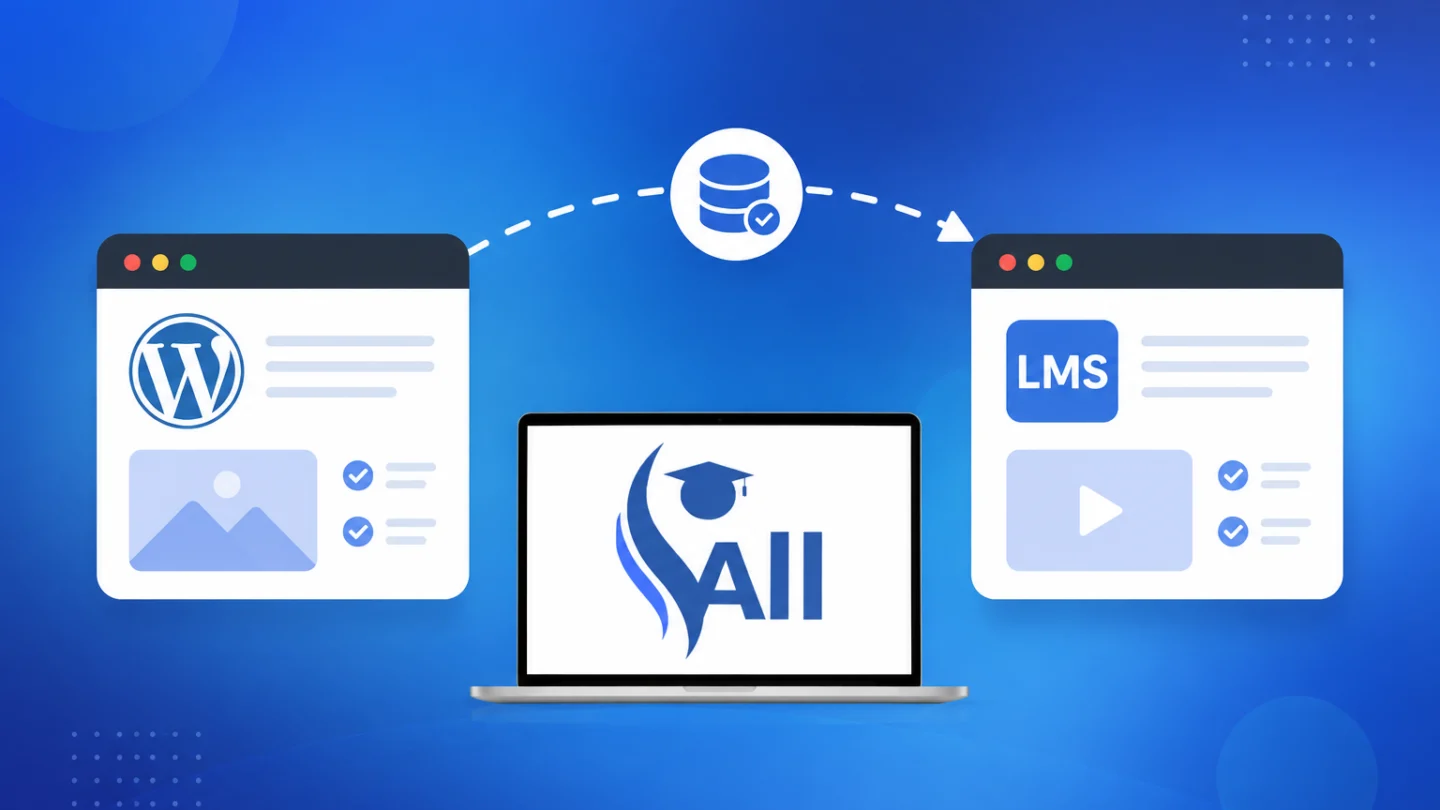
Switching from one WordPress LMS platform to another demands careful planning and technical precision—especially when you’ve invested years building courses, enrolling students, and cultivating organic search rankings. This WordPress LMS migration guide walks you through every phase of platform transitions, from LearnDash to LifterLMS migrations to LearnPress conversions, with actionable steps that protect your data integrity and search visibility throughout the process.
Understanding WordPress LMS Migration: What’s Involved and Why Businesses Switch
A WordPress LMS migration involves transferring course content, user accounts, enrollment records, quiz data, progress tracking, certificates, and associated media files from one learning management system plugin to another. Unlike simple content migrations, LMS transitions must preserve complex relationships between courses, lessons, topics, user progress states, and completion records while maintaining functional quiz logic and certificate triggers.
Research from BuildEmpire (2026) shows that 83% of organizations replace their LMS at least once every five years, driven by evolving business requirements. The Hubken Group identifies integration limitations as one of the key reasons organizations replace their current LMS, particularly when payment gateways, CRM systems, or marketing automation tools fail to connect properly. Businesses also migrate when they outgrow their current platform’s student capacity—LifterLMS works well up to approximately 2,000 students before requiring database optimization—or when they need features like drip content scheduling, advanced reporting, or multi-instructor marketplaces that their existing solution cannot deliver.
Technical architecture differences between platforms create migration complexity. LearnDash stores most data using native WordPress custom post types and post meta, while Tutor LMS employs custom database tables for student records. LifterLMS uses WordPress post meta extensively, which affects how you’ll structure your export files and import processes. Understanding these architectural distinctions before beginning migration prevents data loss and ensures all relational connections remain intact after the transfer.
Pre-Migration Planning: Auditing Your Current LMS Data and Infrastructure
Begin your migration by conducting a comprehensive data audit of your existing LMS installation. Document every course, lesson, topic, quiz, question bank entry, user enrollment record, progress state, certificate earned, group assignment, and custom field. Export a complete database backup using phpMyAdmin or your hosting control panel, and create a staging copy of your entire WordPress installation for testing migration procedures without risking production data.
Catalog your custom integrations, payment gateway connections, email marketing platform links, membership plugin relationships, and third-party add-ons. If you’re using WooCommerce for course sales, MemberPress for access control, or specialized plugins for gamification or social learning, map how these systems interact with your current LMS. Review your permalink structure and note any custom URL patterns—you’ll need this information to create proper 301 redirects that preserve SEO equity during platform transitions.
Identify which data requires migration versus what you can archive or exclude. Student quiz attempts from three years ago may not need transfer if regulatory requirements don’t mandate retention. Incomplete draft courses, test enrollments from development work, and outdated certificate templates clutter your migration and slow the process. Create a prioritized list: critical data (active courses, current enrollments, recent progress), important data (historical completion records, earned certificates), and optional data (old quiz attempts, archived courses). This hierarchy guides your migration workflow and helps allocate technical resources efficiently.
LearnDash to LifterLMS Migration: Step-by-Step Technical Process
The most reliable method for LearnDash to LifterLMS migration uses the Transfer plugin from Honors WP, which handles the complex data relationships between these platforms. Transfer enables effortless migration of courses and content between LearnDash and LifterLMS sites, including course hierarchies, lesson sequences, quiz structures, and user progress data. Install Transfer on both your source LearnDash site and destination LifterLMS site before beginning the export process.
On your LearnDash site, navigate to the Transfer plugin interface and select which content to export. Choose the courses, lessons, quizzes, and user data you wish to migrate—you can select all content or specific items. The plugin compiles your selection into a JSON file that includes course settings, lesson configurations, quiz parameters, question banks, certificates, groups, and user enrollment data. User data included in the migration process encompasses LearnDash course progress, certificates earned, groups the user is added to, quiz data, and user-submitted assignments. Download this export file to your local system as a backup before proceeding to the import phase.
On your destination LifterLMS site, access the Transfer plugin’s import interface and upload the JSON export file. The plugin automatically maps LearnDash data structures to their LifterLMS equivalents, converting course builder elements, quiz types, and progress tracking formats. Transfer maintains data structure, preserves user information, and ensures course progression remains intact throughout the conversion. After import completes, verify that course drip settings, prerequisite relationships, quiz passing thresholds, and certificate award triggers function correctly. Test enrollment workflows by creating test user accounts and confirming they can access courses, complete lessons, submit quizzes, and earn certificates as expected. For organizations managing enterprise-scale LMS deployments, allocate additional time for testing complex permission structures and multi-instructor configurations before directing live users to the new platform.
LearnPress and Other Platform Migrations: Platform-Specific Considerations
LearnPress migrations require different preparation than LearnDash or LifterLMS transfers because of how the plugin stores course data. LearnPress offers a one-click migration tool for seamless transitions from platforms like TutorLMS and LearnDash into LearnPress, but migrating from LearnPress to another system presents unique challenges. The platform transfers course data including lessons and quizzes, section data, and course items, but you must verify that your destination LMS supports equivalent content structures.
When evaluating LearnPress alternatives, examine how each platform handles quiz question types—multiple choice, fill-in-the-blank, and essay formats may not map identically. In the past, a complete WordPress LMS migration meant hiring expensive developers and required weeks of manual data entry and coding, but modern migration tools have automated much of this process. Still, you should test quiz logic and grading systems in a staging environment before committing to the switch, especially if you rely on conditional content or prerequisite requirements.
Smaller platforms like Sensei or WP Courseware rarely offer dedicated migration utilities, forcing you to export course content manually via CSV or custom scripts. Document your current course hierarchy—including drip schedules, access restrictions, and membership integrations—before starting any migration from these less common systems. The absence of automated tools means you’ll likely need enterprise-grade LMS consulting or custom development to preserve complex configurations during the transition.
Preserving Course Data, User Progress, and Enrollment Records During Migration
User progress data represents the most critical—and most fragile—component of any WordPress LMS migration. Completion and assessment records show who completed what, when they completed it, and what score they received, and losing this information forces students to restart courses or invalidates compliance certifications. You must accurately map lesson and course IDs to retain learner progress and preserve completion statuses, timestamps, and activity logs to maintain continuity throughout the learning journey.
Enrollment records connect users to their active, completed, and assigned courses. These records show which courses each learner is currently enrolled in, which are in progress, and which are assigned but not yet started; if your course structure changes in the new LMS, enrollment records may not map correctly without manual adjustment. Export user data including names, email addresses, roles, and hashed passwords before deactivating your source LMS—most platforms export this information as CSV or JSON files (OrangeMantra 2026).
Quiz attempt histories and gradebook entries require special attention during migration. Migration tools handle student progress, enrollment records, and completion statuses automatically and ensure database integrity during the transition, minimizing the risk of errors that could disrupt gradebooks. Always create a complete database backup before starting migration, then validate every user record in a staging environment. Compare enrollment counts, completion percentages, and quiz scores between your old and new systems to catch mapping errors before going live.
Protecting Your SEO: Maintaining Rankings, URLs, and Search Visibility
WordPress LMS migrations frequently destroy search rankings because course URLs change without proper redirect planning. Companies that skip pre-migration planning lose an average of 30% to 60% of their organic visibility, often taking 6 to 12 months to recover what a proper checklist would have protected (Quake Media 2026). Before touching any course pages, crawl your entire site with Screaming Frog or Ahrefs to document every URL that receives organic traffic or holds backlinks—these are your non-negotiable URLs that must redirect correctly.
Use 301 (permanent) redirects for all URL changes; 302 (temporary) redirects do not pass full link equity and signal to search engines that the move is temporary. Map each old course URL to its exact equivalent on the new platform, maintaining the same topic focus and content depth. Maintaining 1-to-1 redirects, preserving title tags and descriptions, and testing internal links before launch reduces performance drops and speeds up recovery after migration.
Submit your updated XML sitemap to Google Search Console immediately after implementing redirects, then monitor the Coverage report for crawl errors. Traffic will typically stabilise within 4-8 weeks following a site migration as search engines recrawl the old URLs, process the permanent 301 redirects and index the new pages (The Digital Maze 2026). Track your top 20 ranking keywords daily for the first month—sudden drops indicate redirect failures or content changes that require immediate correction. Preserve all course metadata including title tags, meta descriptions, and schema markup to maintain your existing search visibility during the transition.
Post-Migration Testing and Validation: Ensuring Data Integrity
Testing cannot begin after go-live—establish a staging environment in the new LMS for test migrations, never run first-pass migrations against your live production instance according to LMSPedia (2026). Build a systematic validation checklist that covers every data type: test migrated data to verify accuracy of user records, completions, and certifications as WorkRamp recommends (2025). Recruit a pilot group of at least 30 real learners—not just administrators—because admin accounts have elevated permissions that bypass many failure modes real learners encounter according to LMSPedia’s 2026 migration guide. Require pilot users to complete full learning journeys: enroll in courses, progress through lessons, submit quiz attempts, download certificates, and verify their completion history matches legacy records.
Run parallel systems for comparison—run systems in parallel for a short time to compare records between the old and new LMS per WorkRamp (2025). Focus validation on edge cases that cause silent failures: partially completed courses, expired certifications, multiple quiz attempts with different scores, and users with duplicate accounts. If your current LMS doesn’t export completion timestamps or stores them in a proprietary format, you may end up with a list of who completed what, but no dates, no scores, no certificates warns EducateMe (2026). Document every discrepancy with screenshots and timestamps. Retain read-only access to the legacy LMS for at least 60 days post-cutover to provide a safety net for compliance queries and disputed records that surface after launch.
Common Migration Pitfalls and How to Avoid Them
The number one killer of LMS migrations is not technical complexity—migration failures are almost always planning failures, not technical failures according to Trainery (2026). No data mapping plan before migration begins causes custom user fields, completion status labels (“passed” vs “completed”), and SCORM 1.2 vs SCORM 2004 version mismatches to cause silent failures per LMSPedia (2026). Organizations assume the new platform will “just accept” export files, then discover mid-migration that records import but track incorrectly or completions disappear entirely. Build your data mapping spreadsheet before you touch any migration tools—map every custom field, every user role, every completion status, and every SCORM version in your current system to its equivalent in the target platform.
SCORM incompatibility causes more problems than almost anything else—a course that played perfectly in the old system fails to record completion in the new one because of version differences reports EducateMe (2026). Test every SCORM package individually in staging before bulk migration. Skipping backups is one of the biggest LMS migration mistakes organizations make according to Dimetics (2026)—create complete backups of your entire LMS environment before initiating any data transfer. The third critical mistake: learner confusion at cutover: no comms plan, unfamiliar login URL, completion history that appears missing per EducateMe. Send learners a migration timeline two weeks before cutover, provide new login credentials three days ahead, and publish an FAQ addressing why course progress might display differently. For enterprise LMS implementations, plan a minimum 90-day parallel access window rather than rushing decommissioning.
FAQ
How long should a WordPress LMS migration take?
Mid-sized organizations with 1,000–10,000 users typically need 3–6 months, while enterprise migrations with 10,000+ users routinely run 6–12 months according to Brandon Hall Group benchmarks cited by LMSPedia (2026). Rushing the timeline creates data integrity problems that cost more time to fix than proper planning would have taken.
Can I migrate user progress and completion records between WordPress LMS platforms?
Yes, but not automatically in most cases. Learners who are already enrolled and partway through courses expect their progress to still be there—enrollments tied to specific users and completion records tied to specific lessons must migrate accurately according to WBCom Designs (2026). Use dedicated migration tools or database exports rather than manual reconstruction to preserve this critical data.
What happens to platform-specific features during migration?
Features specific to LifterLMS like sale price, tracks, difficulties, and engagements will not get moved over when migrating to LearnDash, per LearnDash Support documentation (2025). Every WordPress LMS has proprietary features that don’t map to other platforms. Audit your feature usage before migration and plan manual recreation or alternative workflows for platform-specific functionality.
Should I migrate all courses at once or use a phased approach?
Avoid migrating everything at once—a phased migration reduces operational risks and allows teams to identify issues before full deployment advises Dimetics (2026). Start with a single course or course category, validate thoroughly with real learners, then expand migration in controlled batches. This approach prevents catastrophic failures that affect your entire learner population.
How do I maintain SEO during an LMS migration?
Preserve your URL structure wherever possible—course and lesson URLs should remain identical post-migration. If URL changes are unavoidable, implement 301 redirects from every old URL to its new equivalent before go-live. Export a complete list of all course, lesson, and category URLs from your current LMS, then map each one to its post-migration destination. Monitor Google Search Console for crawl errors during the first 30 days after migration and fix any broken redirects immediately.